
How to use NAKMAT
We’ve picked the features you’ll use most and put them in order. Feel free to jump straight to what you need.
The NAKMAT app is currently available in Korean. Button names are shown in English with the Korean label in parentheses.
Just remember the five tabs at the bottom
When you open the app, you’ll see five tabs along the bottom of the screen. Just pick the one that fits what you want to do. Below, we’ll go through them one by one, from left to right.
- 1 Map (지도)
See catch reports, weather, wind, tides, water levels, CCTV and no-fishing zones on one map. The Trip Planner starts here too.
- 2 Fishing Life (피싱라이프)
Join Challenges and Tournaments and check the rankings.
- 3 Log (기록)
Your catches and the days you’ve been out fishing all add up here.
- 4 Shop (샵)
Browse gear in the NAKMAT Shop and spend the points you’ve collected.
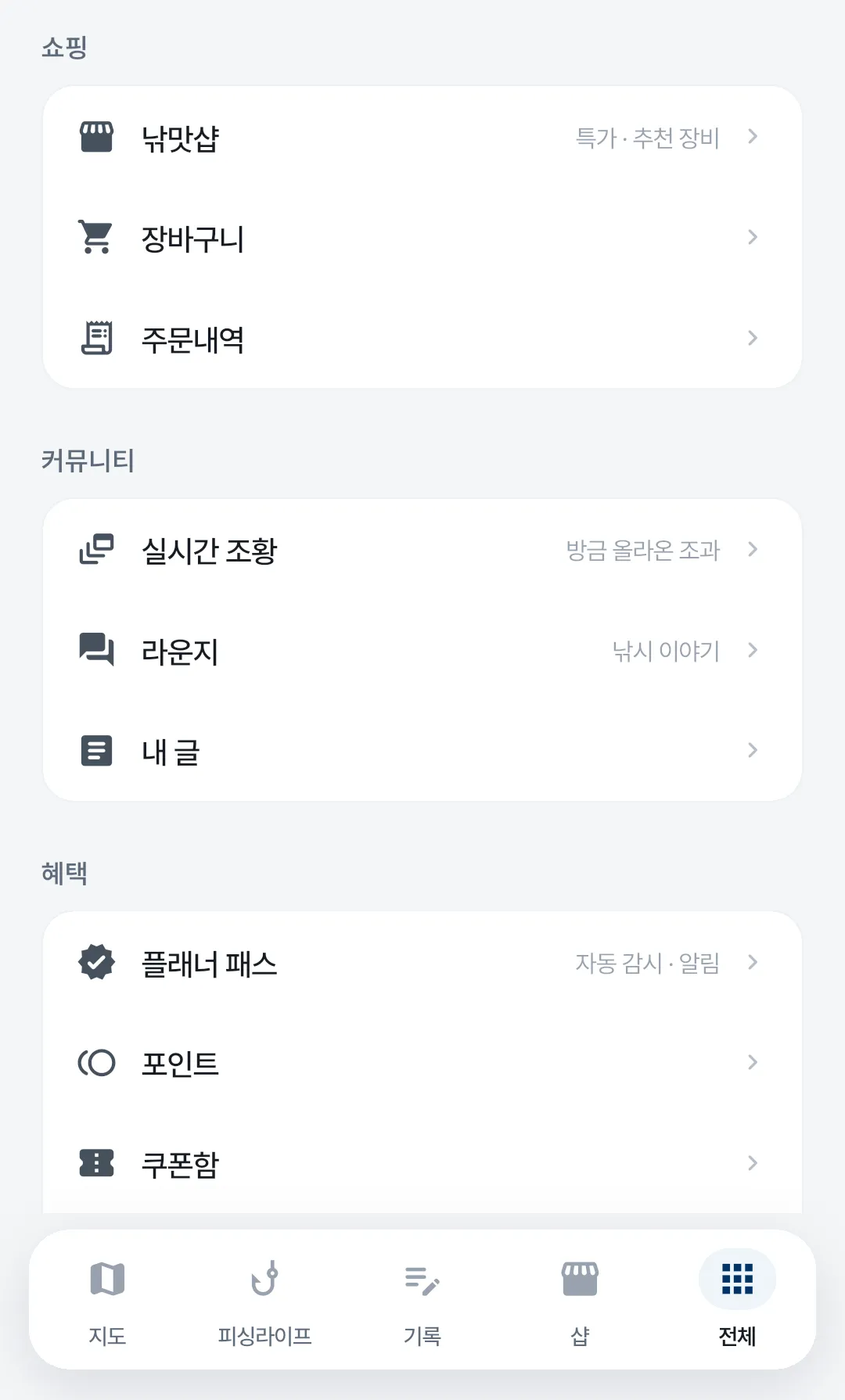
- 5 More (전체)
Live catch reports, the Lounge, Planner Pass, points, your notification inbox and settings are all here.
See it here, plan it here
See catch reports, weather, wind, tides, CCTV and no-fishing zones on one map. The Trip Planner and the weather and tide screens all start from this tab, too.
Using the map
Turn layers on and off from the vertical bar on the right side of the map. Show only what you need and the screen stays uncluttered.
-
Choose your layers
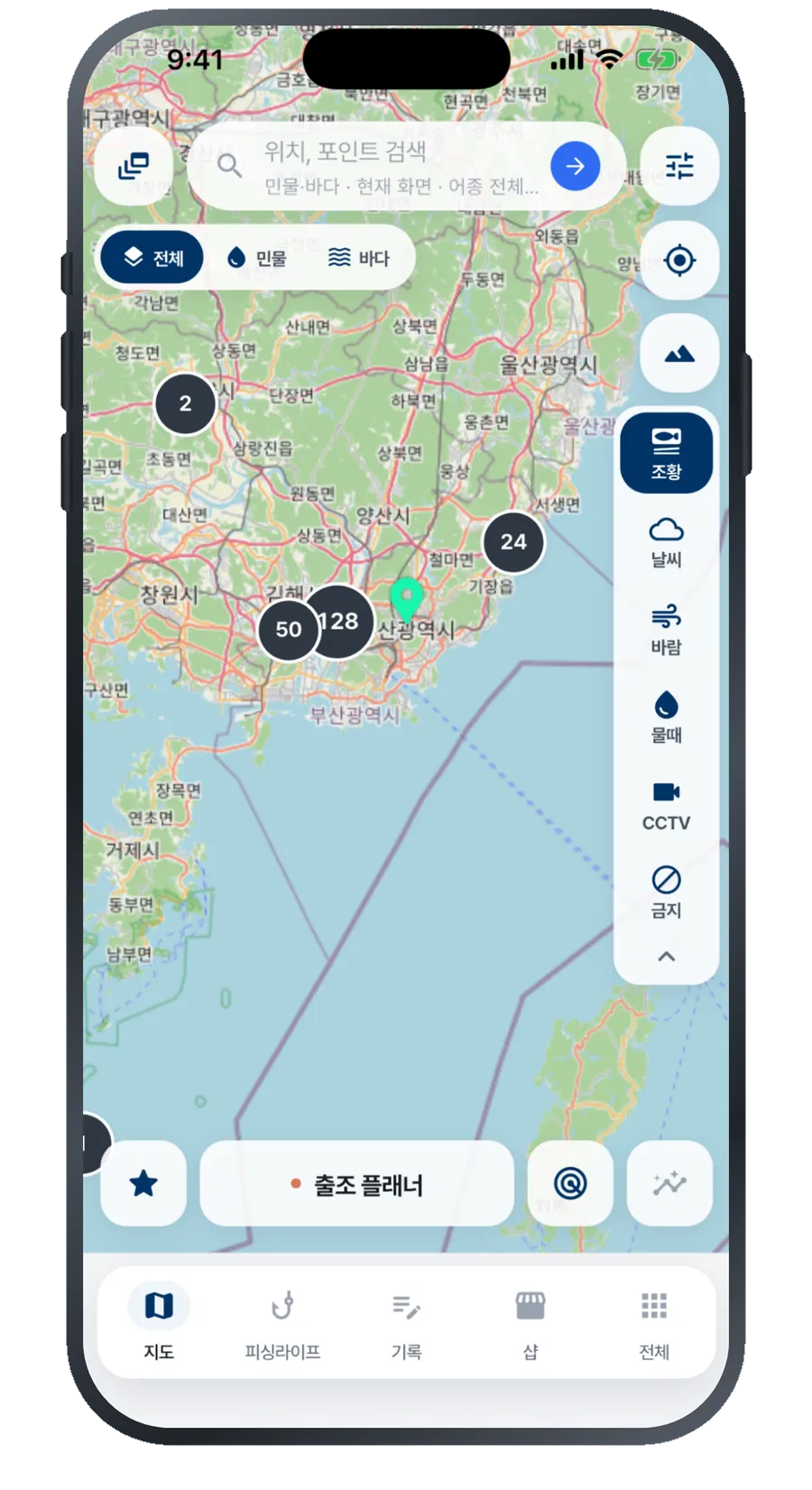
In the bar on the right, tap Catches (조황) · Weather (날씨) · Wind (바람) · Tides (물때) · CCTV · No-fishing (금지) to turn a layer on. Tap it again to turn it off.
The No-fishing (금지) layer is marked Beta. Please use it for reference only — we explain why in the FAQ below.
-
Tap a catch-report number
The round numbers on the map show how many catches have been posted nearby. Tap one to expand it, and keep tapping to see each individual post.
-
Switch to satellite view
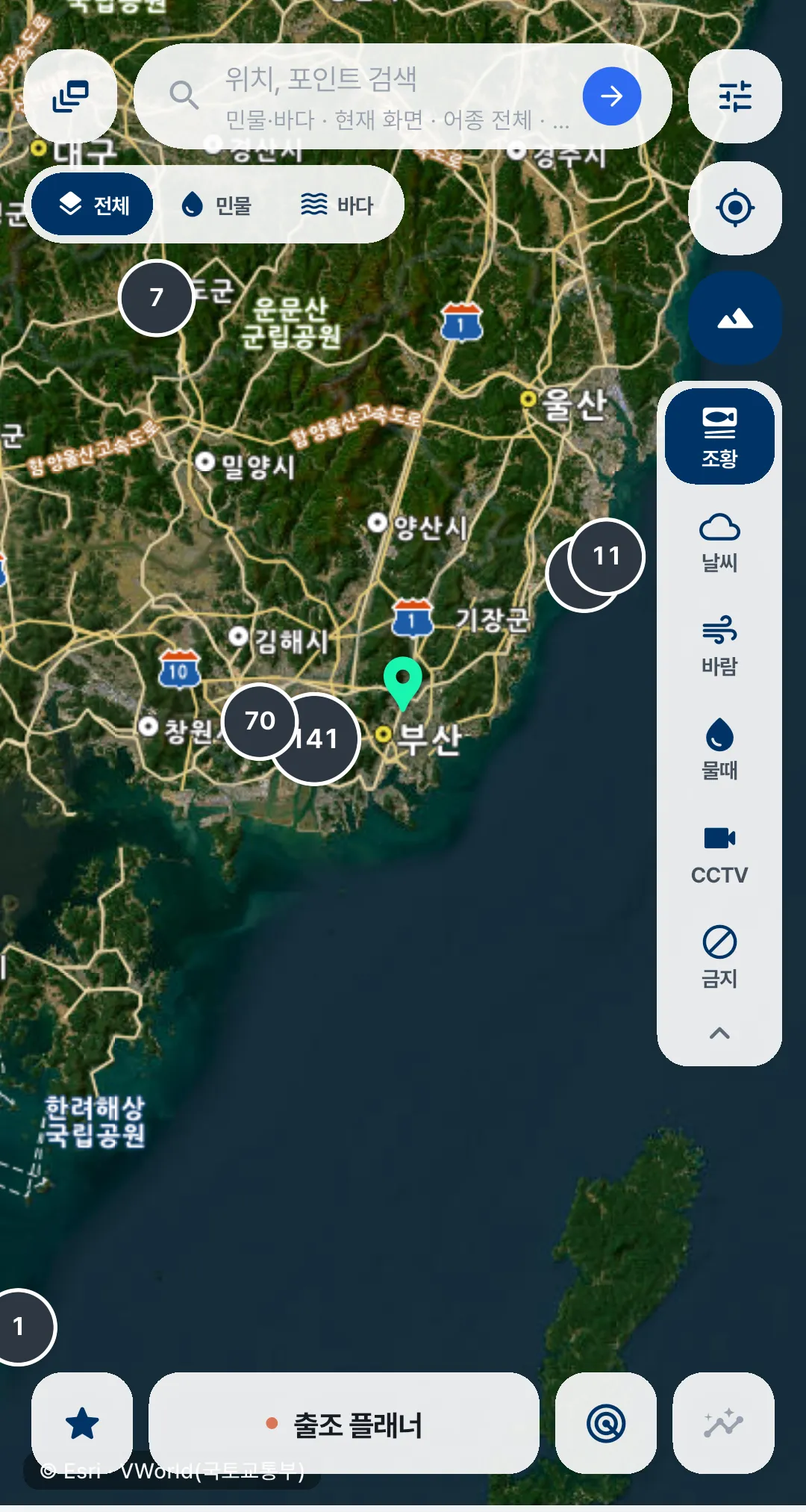
Tap the mountain icon at the top right to switch to satellite imagery. It’s handy for checking things the regular map doesn’t show, like the shape of a breakwater or the way in.
Your layers and catch-report numbers stay on top in satellite view, too.
-
Press and hold the map to pick a spot
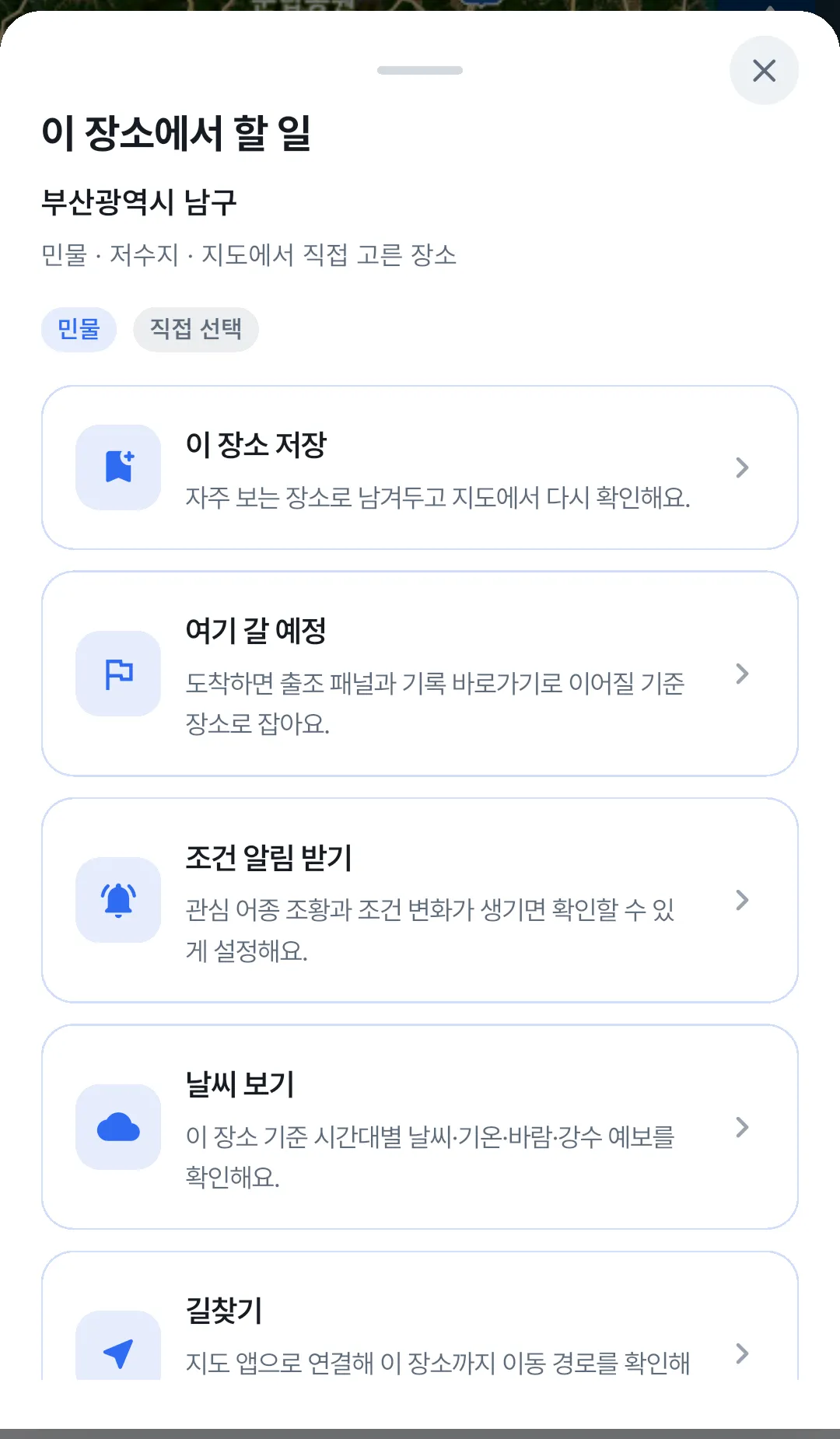
Press and hold anywhere you’d like to go, and everything you can do with that spot pops up at once.
Keep it with Save this place (이 장소 저장), mark it with Planning to go here (여기 갈 예정), or use Get condition alerts (조건 알림 받기) to be notified when conditions line up. You can also just check the weather, or go straight to directions.
Trip Planner
Just choose where and when you want to go. We’ll keep an eye on the weather and tides and let you know if anything changes.
-
Choose a spot
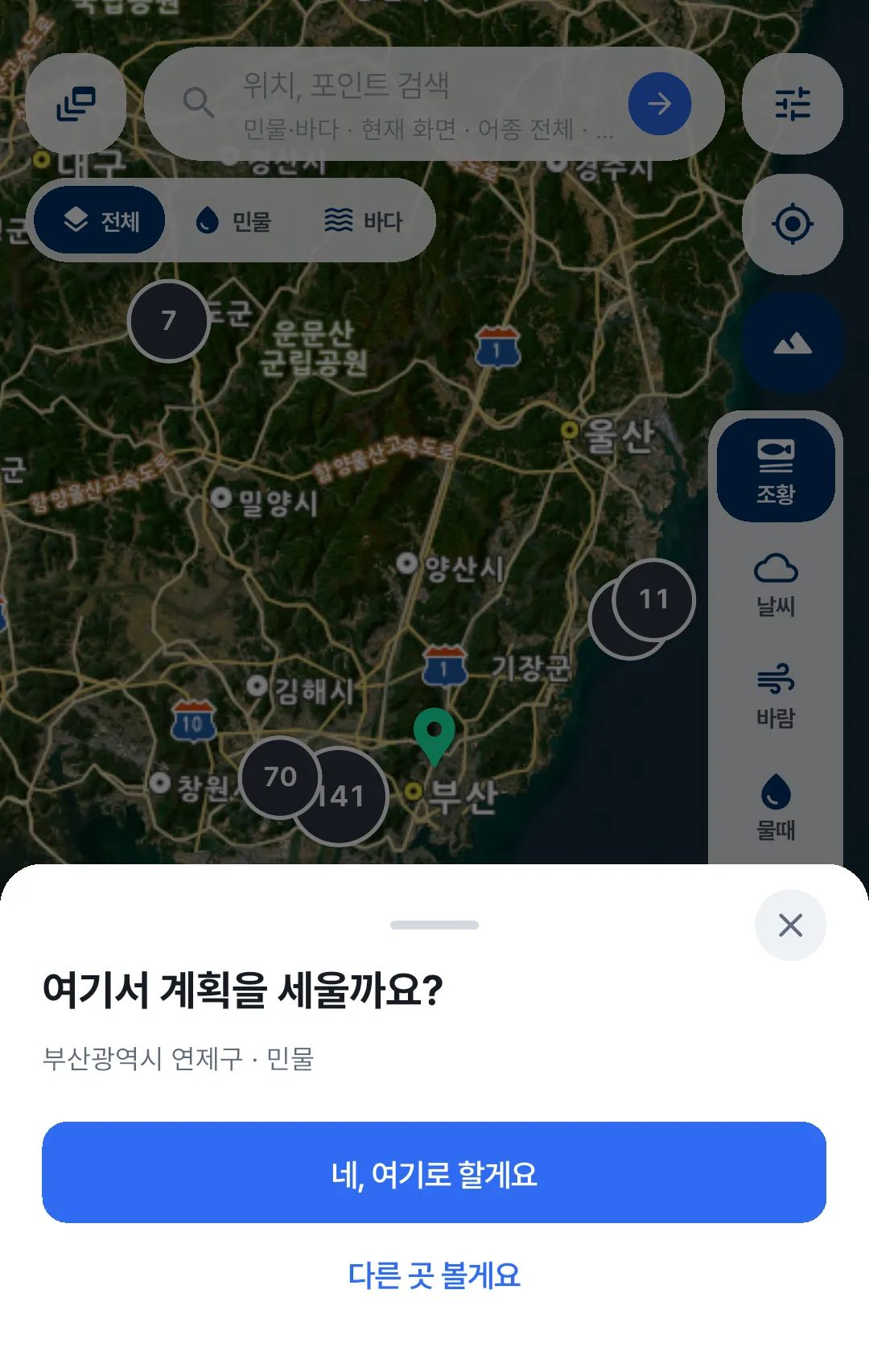
Tap Trip Planner (출조 플래너) below the map, and it’ll ask whether you want to plan around the spot you’re looking at. You can pick somewhere else, too.
Then confirm whether it’s freshwater or saltwater — the tides and forecast you see are tailored to that.
-
Compare dates
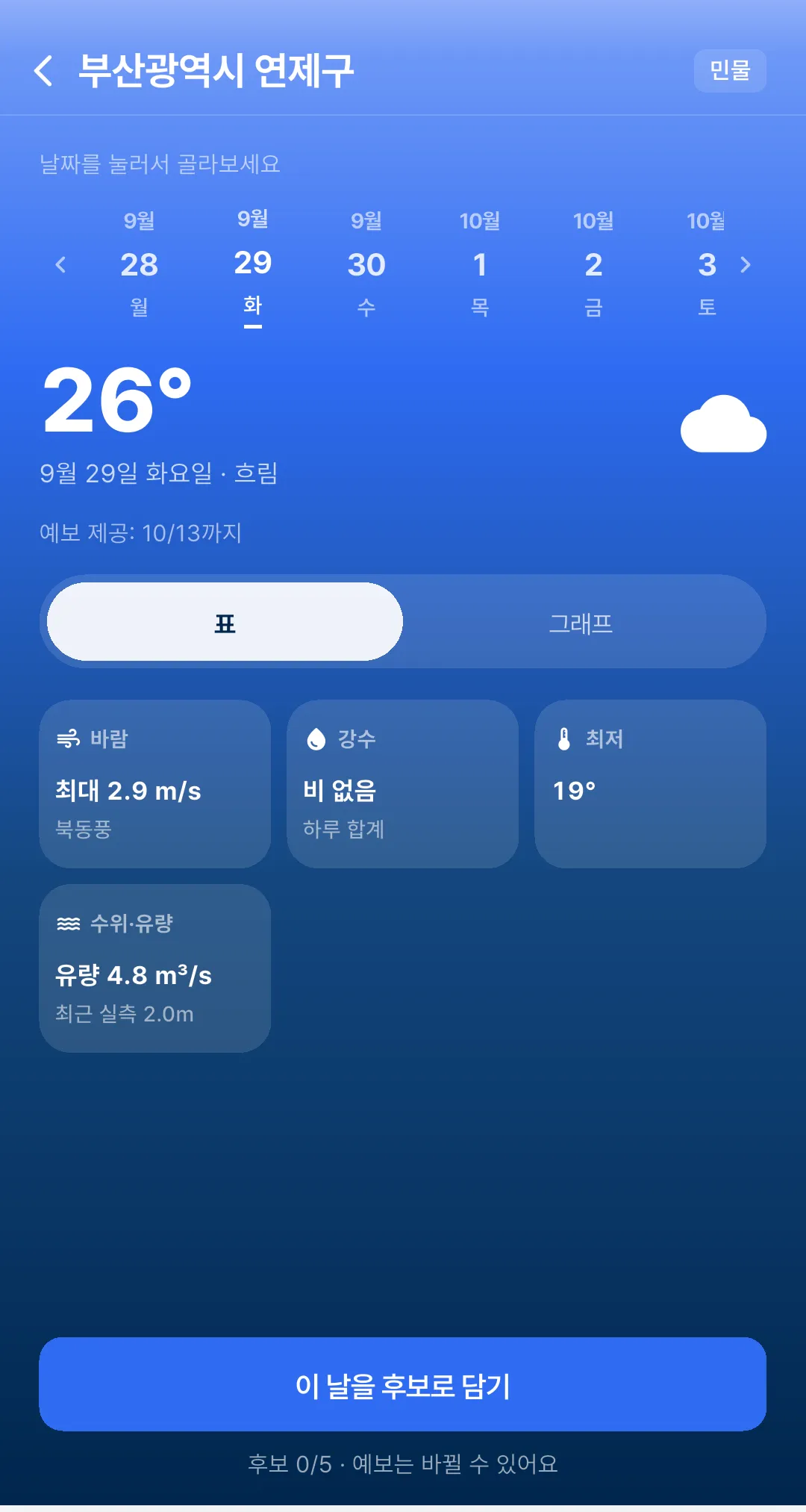
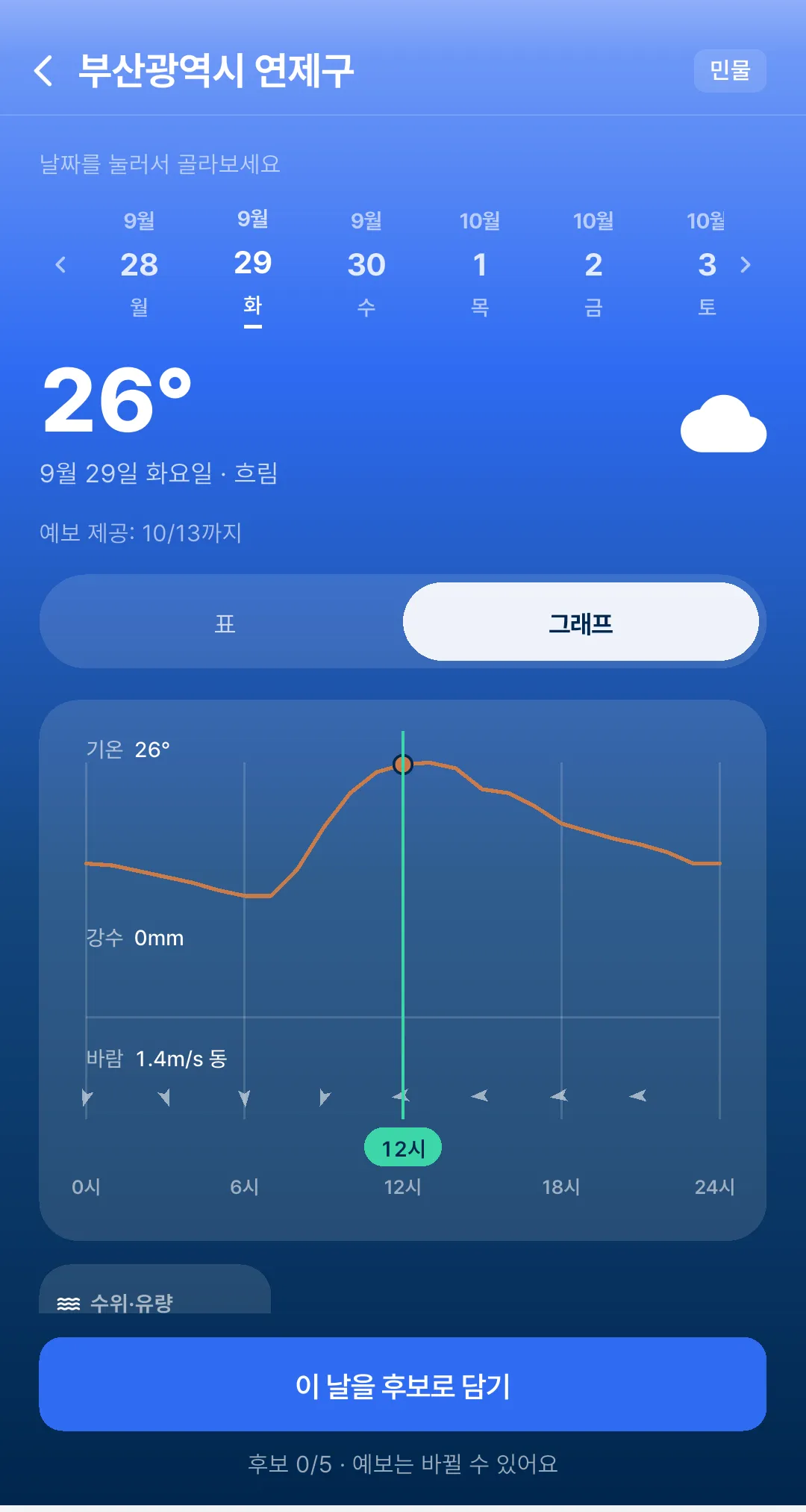
Tap through the dates to see wind, rain, temperature and tides side by side. Stick with the table if that’s easier, or switch to Graph (그래프) to see how things change over time.
How far ahead the forecast goes is shown on screen as Forecast available until ○/○ (예보 제공: ○/○까지). Wave height and water temperature cover a shorter period.
-
Save the days that look good
When a day looks good, tap Add this day as a candidate (이 날을 후보로 담기). You can save several days and compare them later.
-
We’ll tell you when the forecast changes
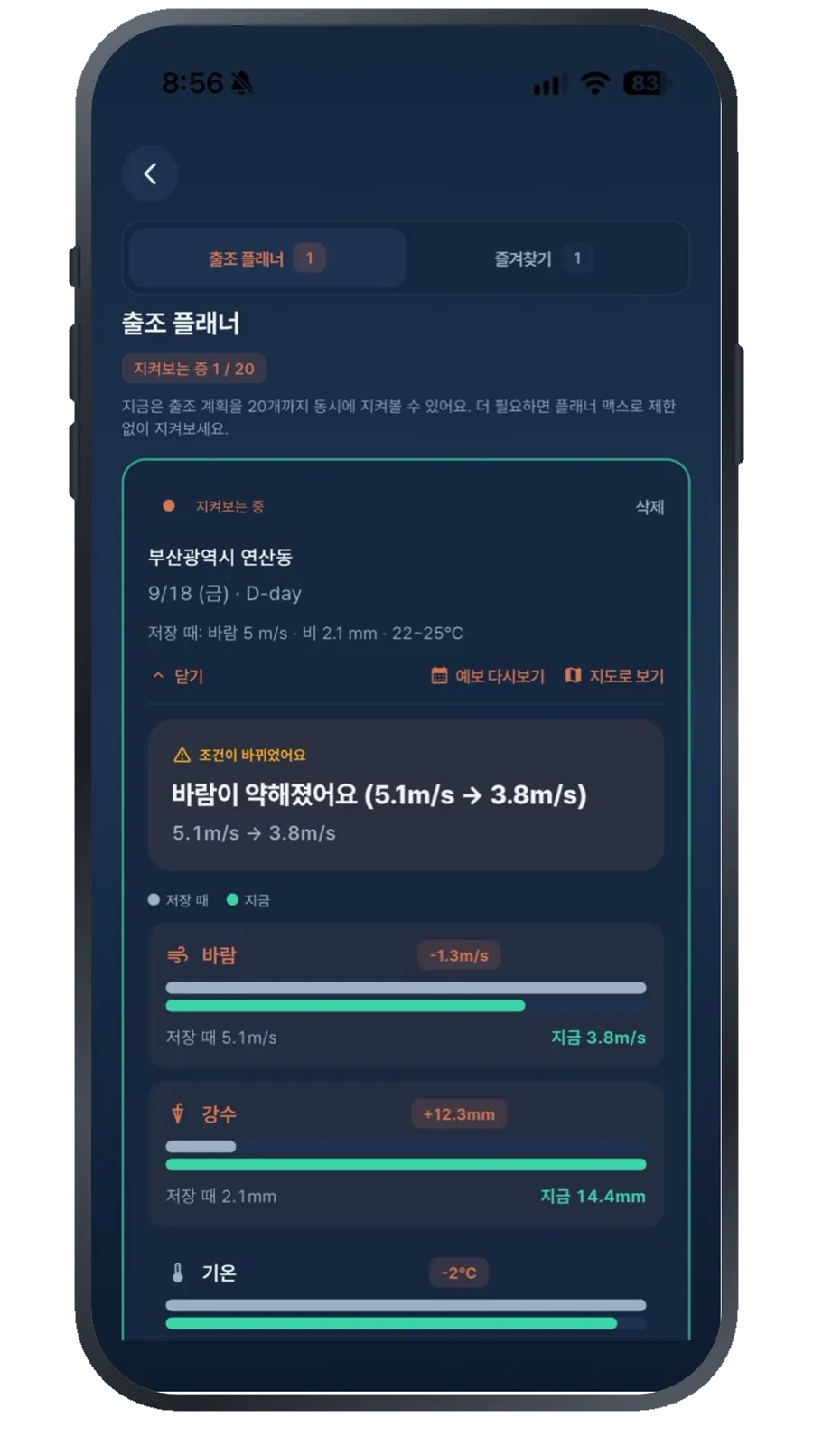
If the forecast changes for a day you’ve saved, we’ll let you know first. We also show you exactly what changed and how — for example, whether the wind has eased or the rain has cleared.
-
Set up conditions
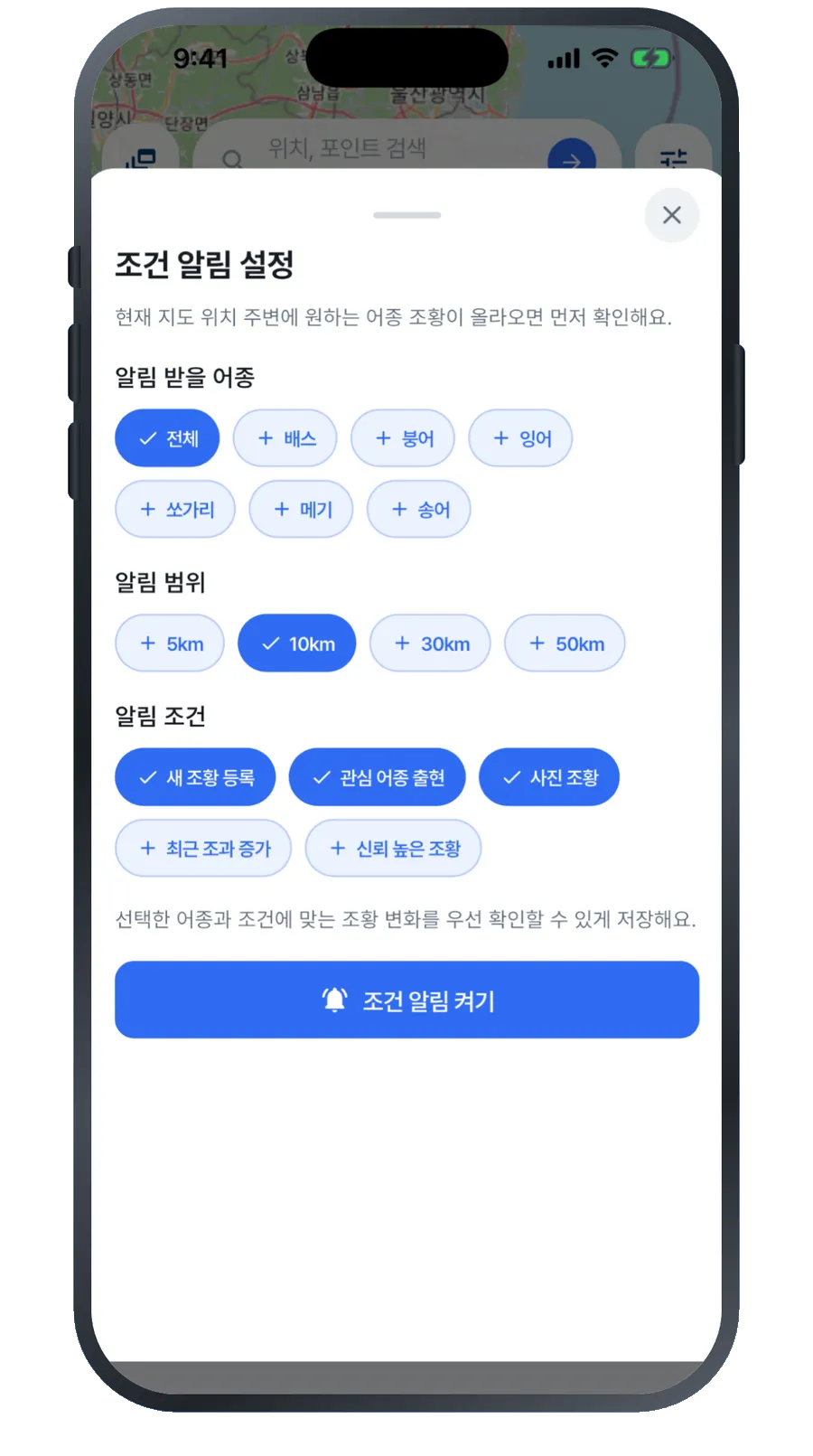
Set the species · range · conditions (어종 · 범위 · 조건) for a saved spot, and you’ll get an alert when a matching catch report is posted. No more refreshing and waiting.
-
How many spots can we watch for you?
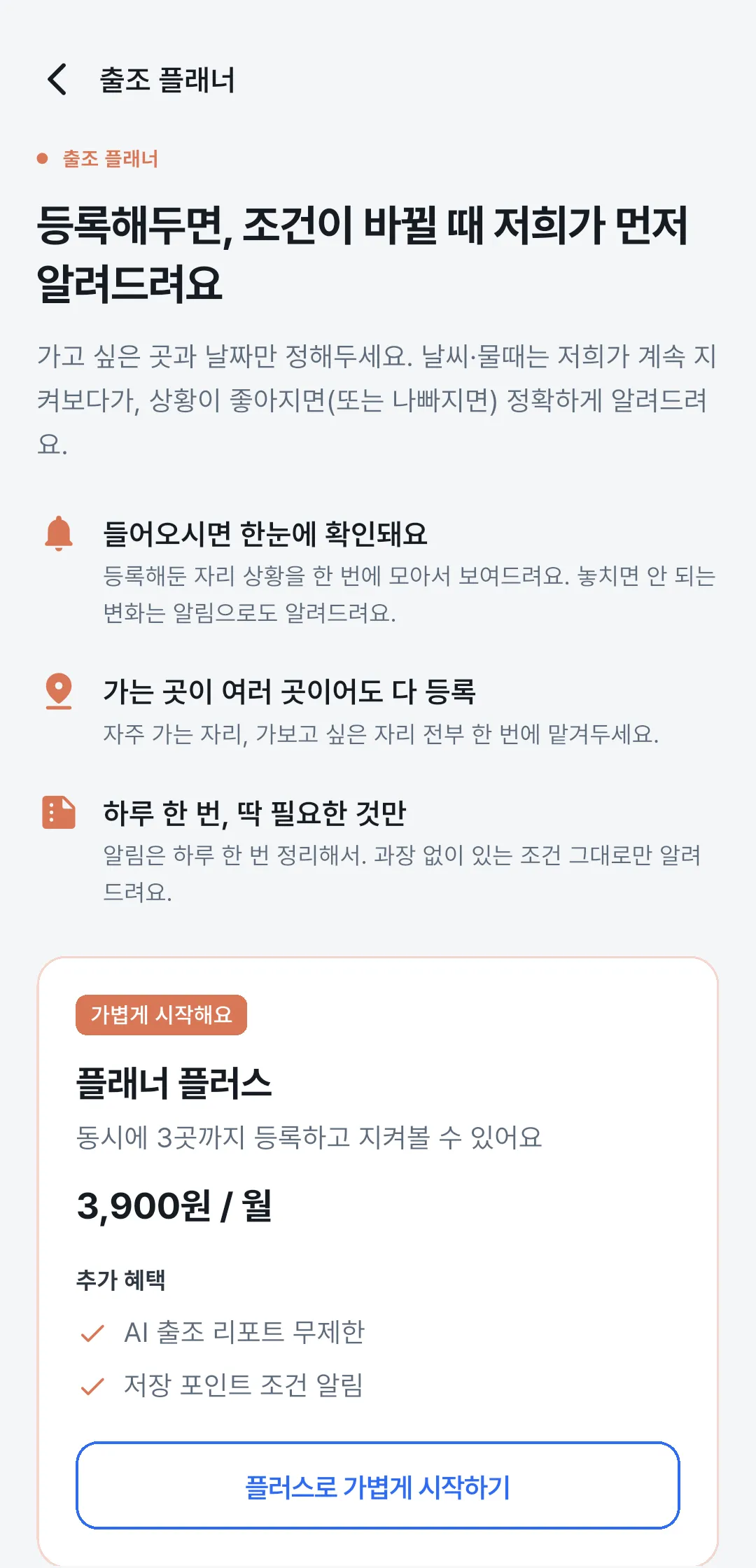
Saving spots is free, however many you save. The limit applies to Watch (지켜보기) — that’s the feature where we check the forecast every day and let you know.
You can Watch 1 spot for free. If you have several regular spots, take a look at Planner Pass — Plus: 3 spots · Pro: 20 spots · Max: unlimited.
You can check your current plan and pricing under More (전체) → Planner Pass (플래너 패스).
Weather & tides
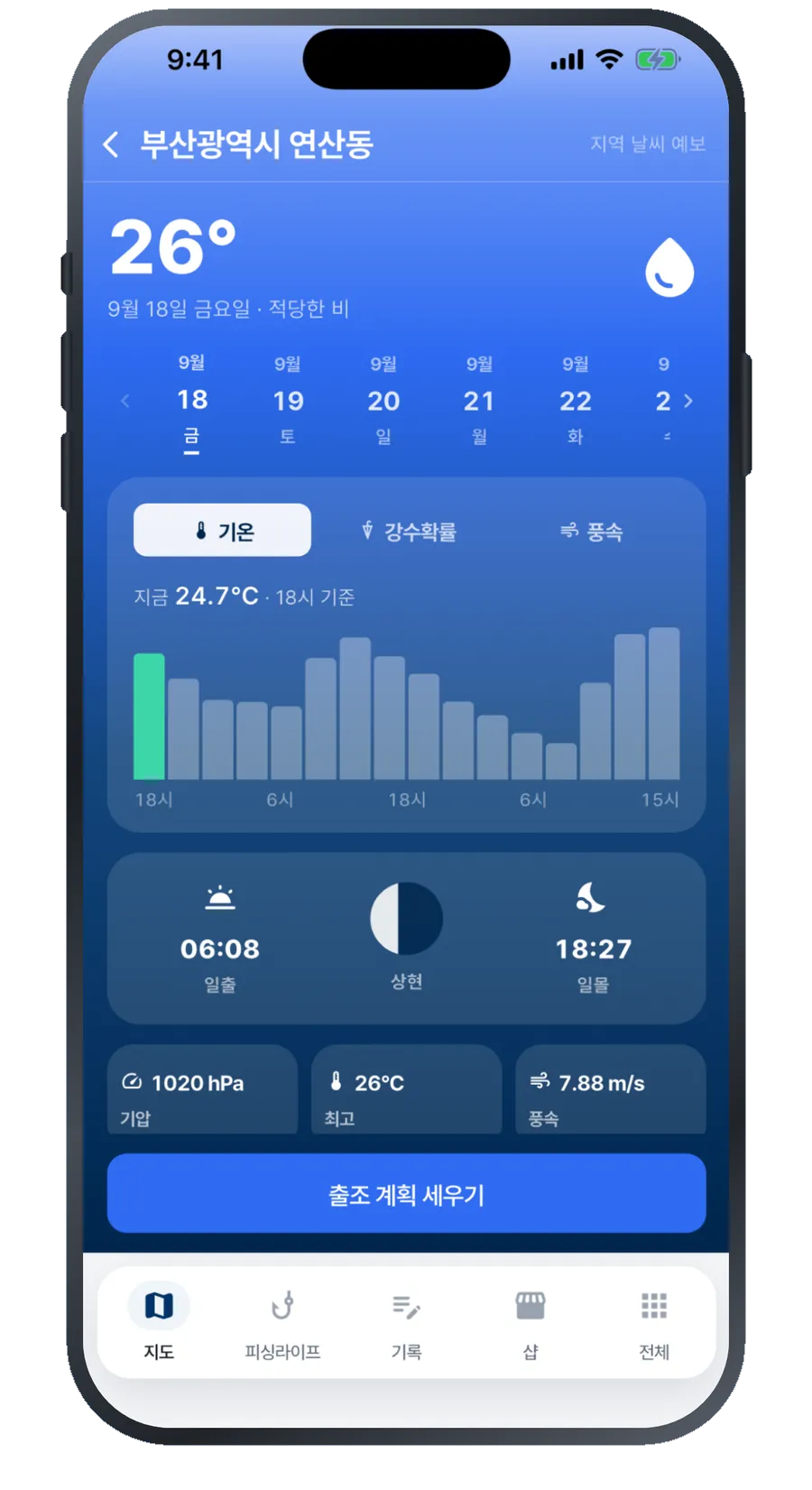
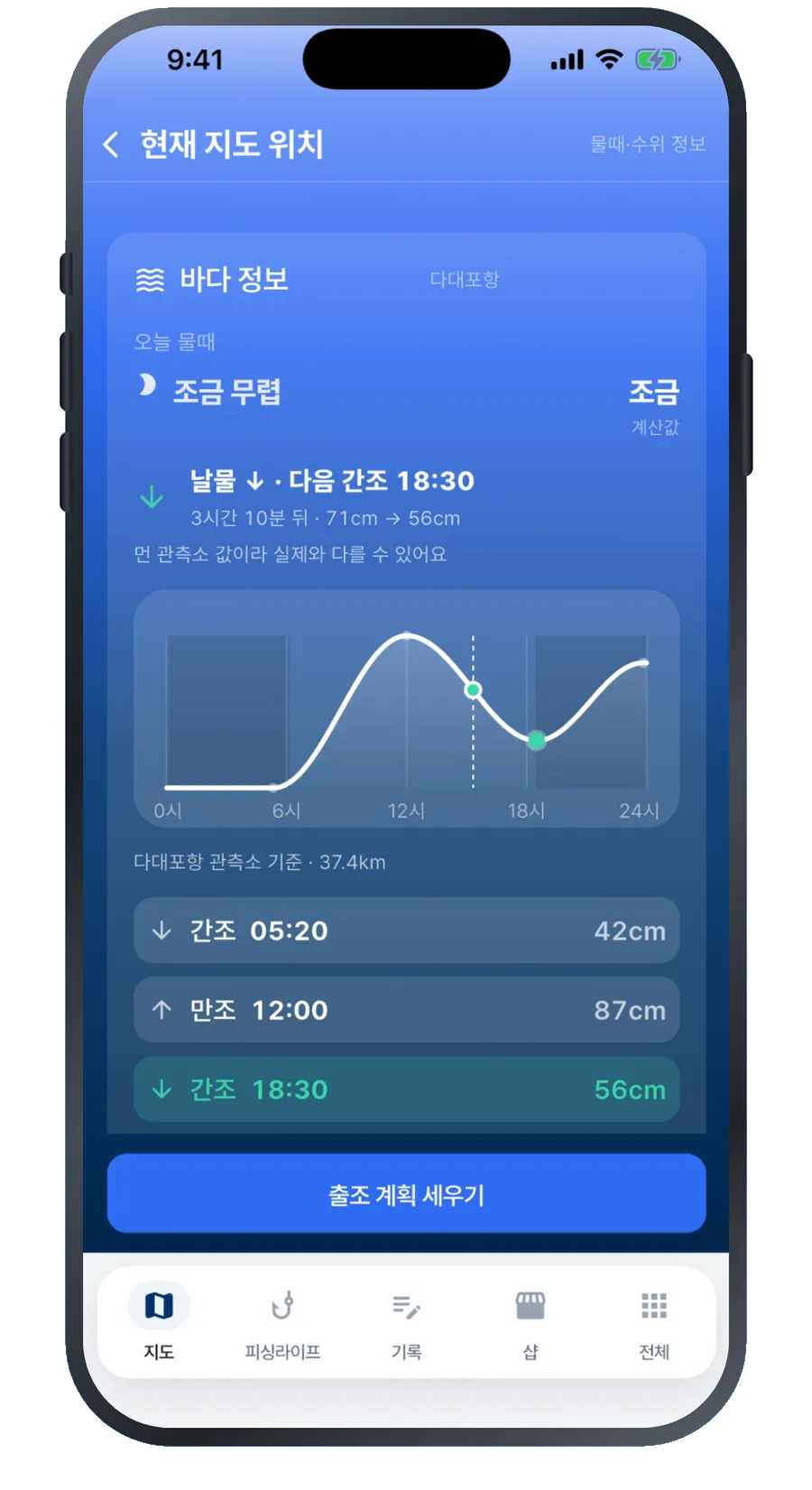
Tap Weather (날씨) or Tides (물때) on the map to open them. Check them when you’re deciding what time to head out.
-
Check hour by hour
The weather screen shows temperature, chance of rain and wind speed by time of day. Use it to decide whether to go at dawn or in the afternoon.
Current conditions come from Korea Meteorological Administration (KMA) observations.
-
Incoming or outgoing tide?
The tide screen shows at a glance whether the tide is coming in or going out, and how many hours are left until the next tide change. No need to work it out from a tide table.
Tide heights are matched to your exact location, and you can check wave height, water temperature and water level there too.
Turn your catches into points and prize money
Just posting your catches counts toward Challenges, and entering Tournaments can even win you prize money.
-
Join a Challenge
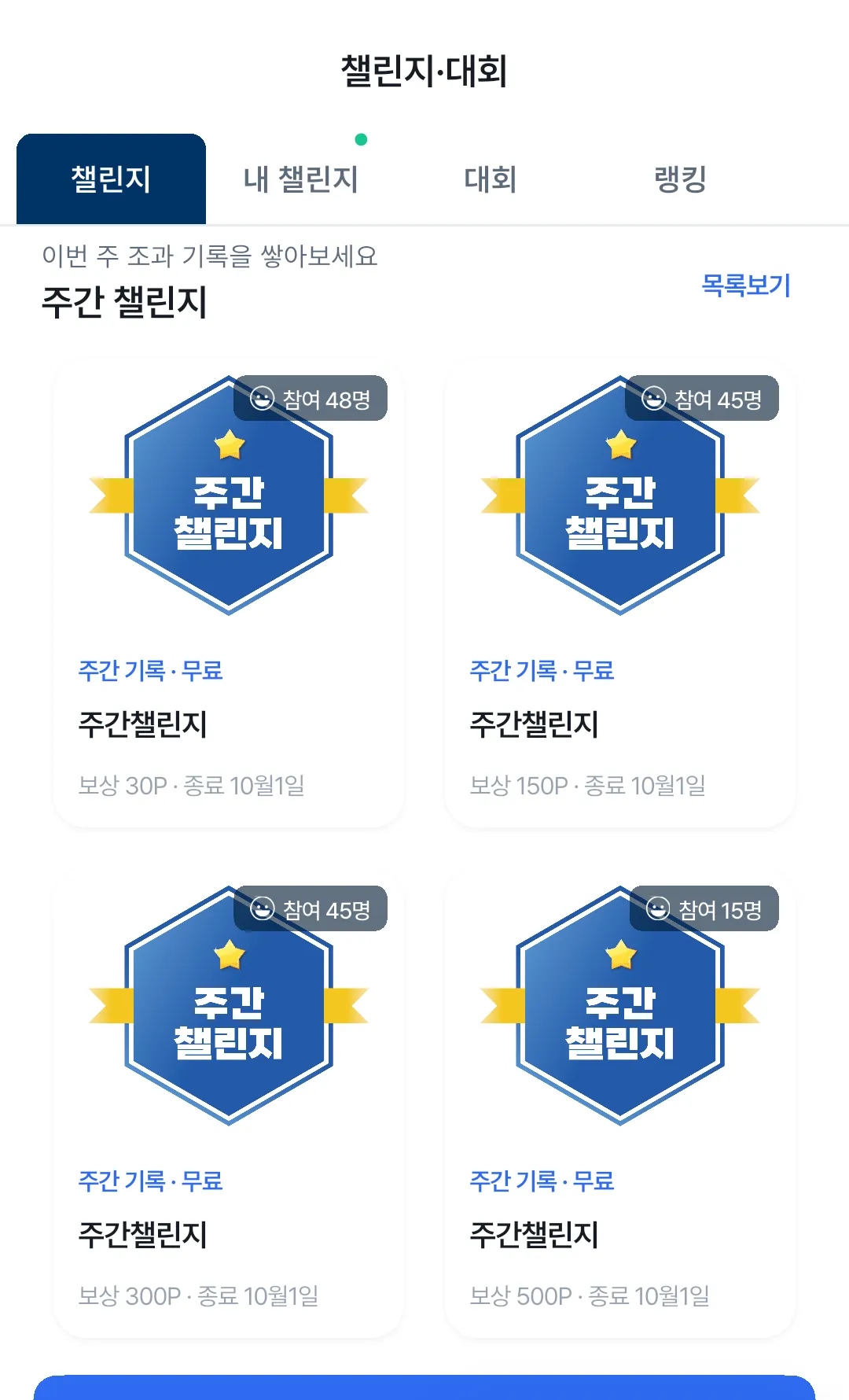
See the Challenges currently running in the Fishing Life (피싱라이프) tab. Post a catch that meets the requirements and it counts automatically.
-
Enter a Tournament
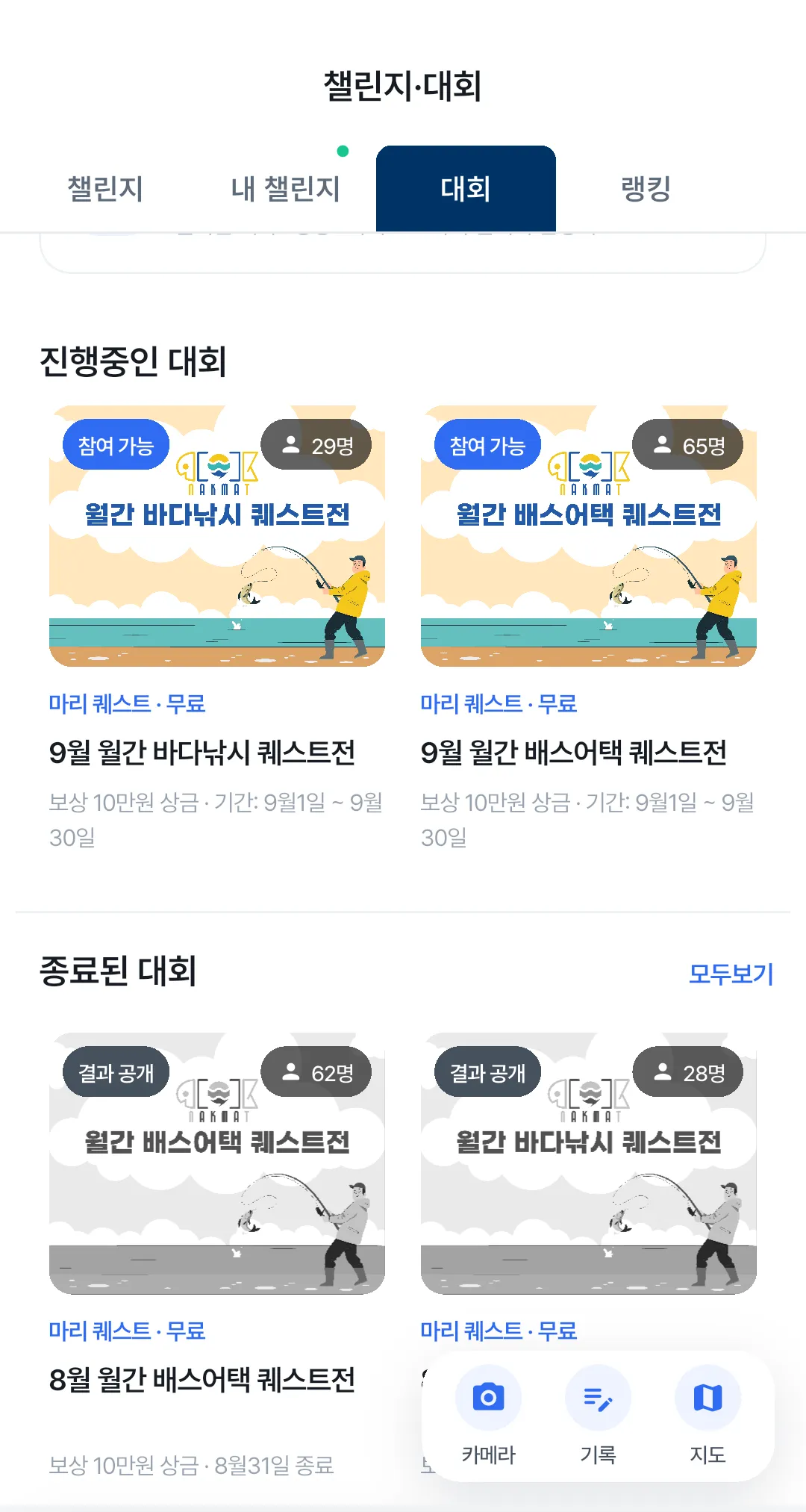
Ongoing Tournaments are gathered under the Tournaments (대회) tab at the top. Each card shows whether it’s Open to join (참가 가능), whether entry is free, and the dates and prize money.
You can see results for finished ones under Ended (종료된 대회), and there’s also a separate Tournament (토너먼트) section where many anglers compete against each other.
Just snap a photo — the app remembers the rest
From taking the photo to finding it again later, here’s how it works, step by step.
-
Before you shoot, choose how to log it
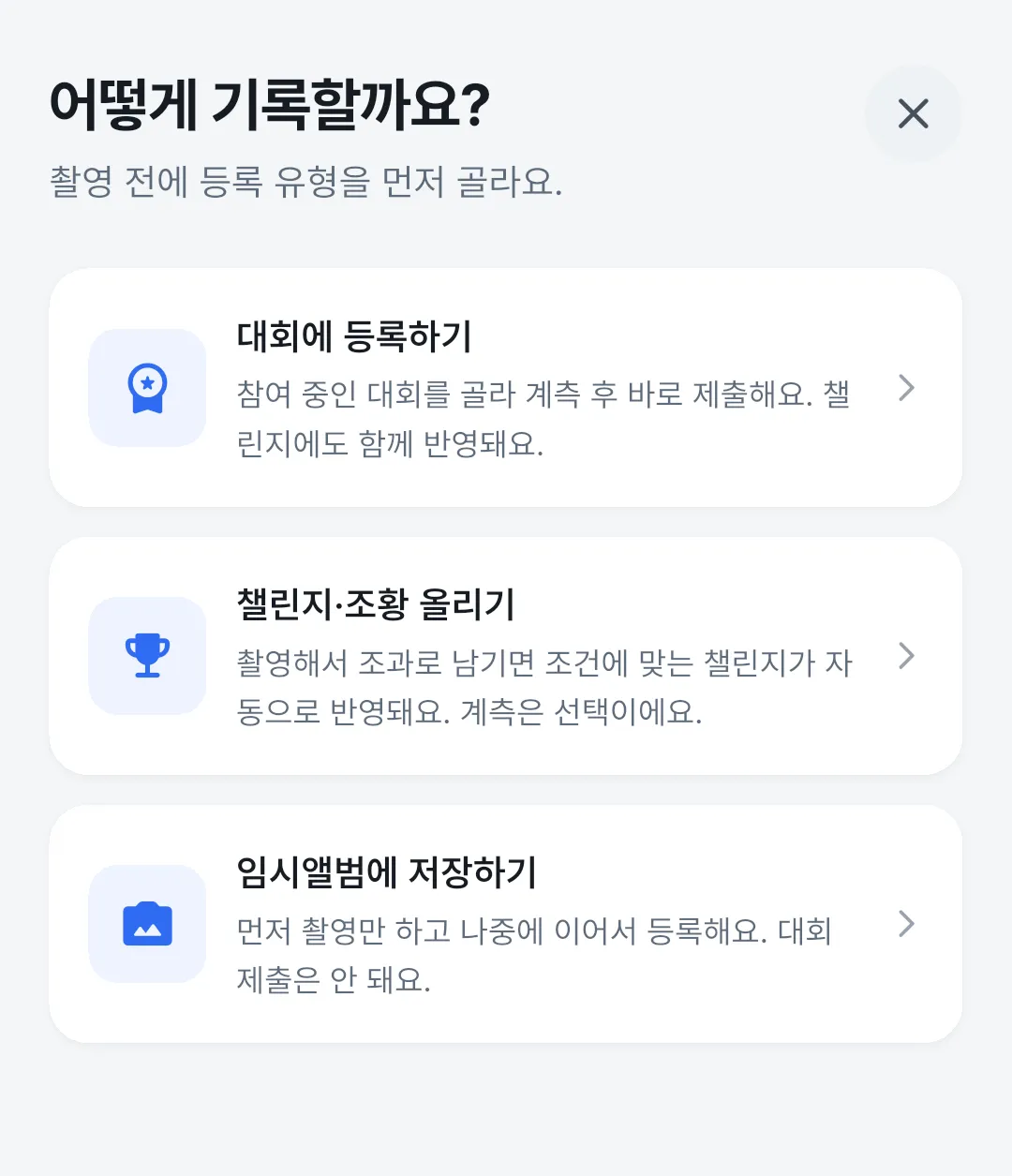
When you tap Capture (촬영) in the Log (기록) tab, you’ll first pick one of three options. What happens next depends on your choice, so it’s worth a quick look.
Submit to a Tournament (대회에 등록하기) lets you pick a Tournament you’ve entered and submit right away. It counts toward Challenges, too.
Post to Challenges & catch reports (챌린지·조황 올리기) is the everyday option. Any Challenges whose requirements you meet are updated automatically.
Save to temporary album (임시앨범에 저장하기) just keeps the photo for now so you can finish logging it later. It can’t be submitted to Tournaments. -
Add the species and length
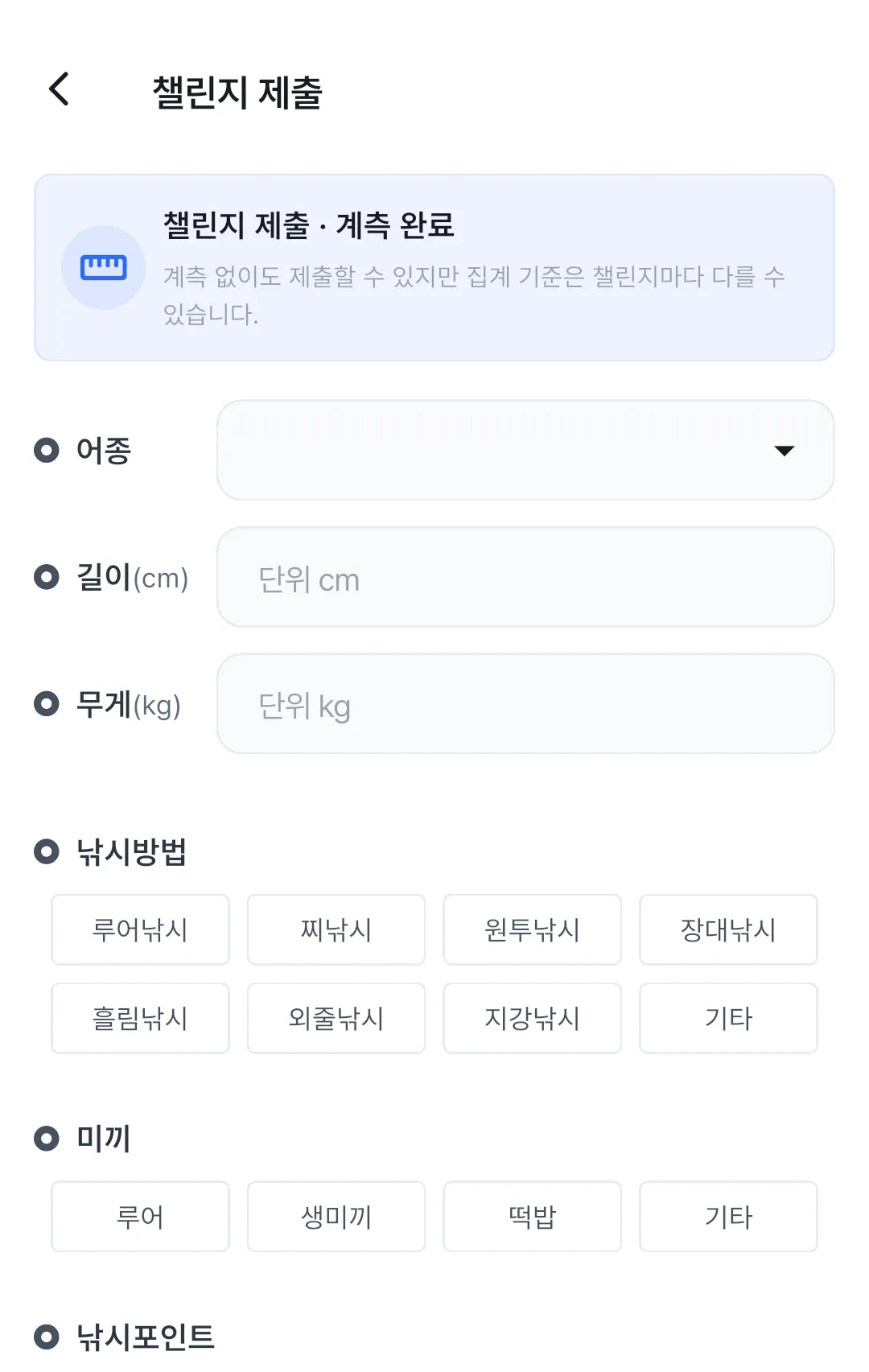
When you take a photo, when and where you caught the fish is added automatically. Add the species, length, fishing method and bait, and it’ll be easier to look back on later.
You can also use Measure (계측) to measure length from the photo. Photos for Tournaments go through measurement; for Challenges and catch reports you can post without it — but how catches are counted may differ from Challenge to Challenge.
-
View your catch log
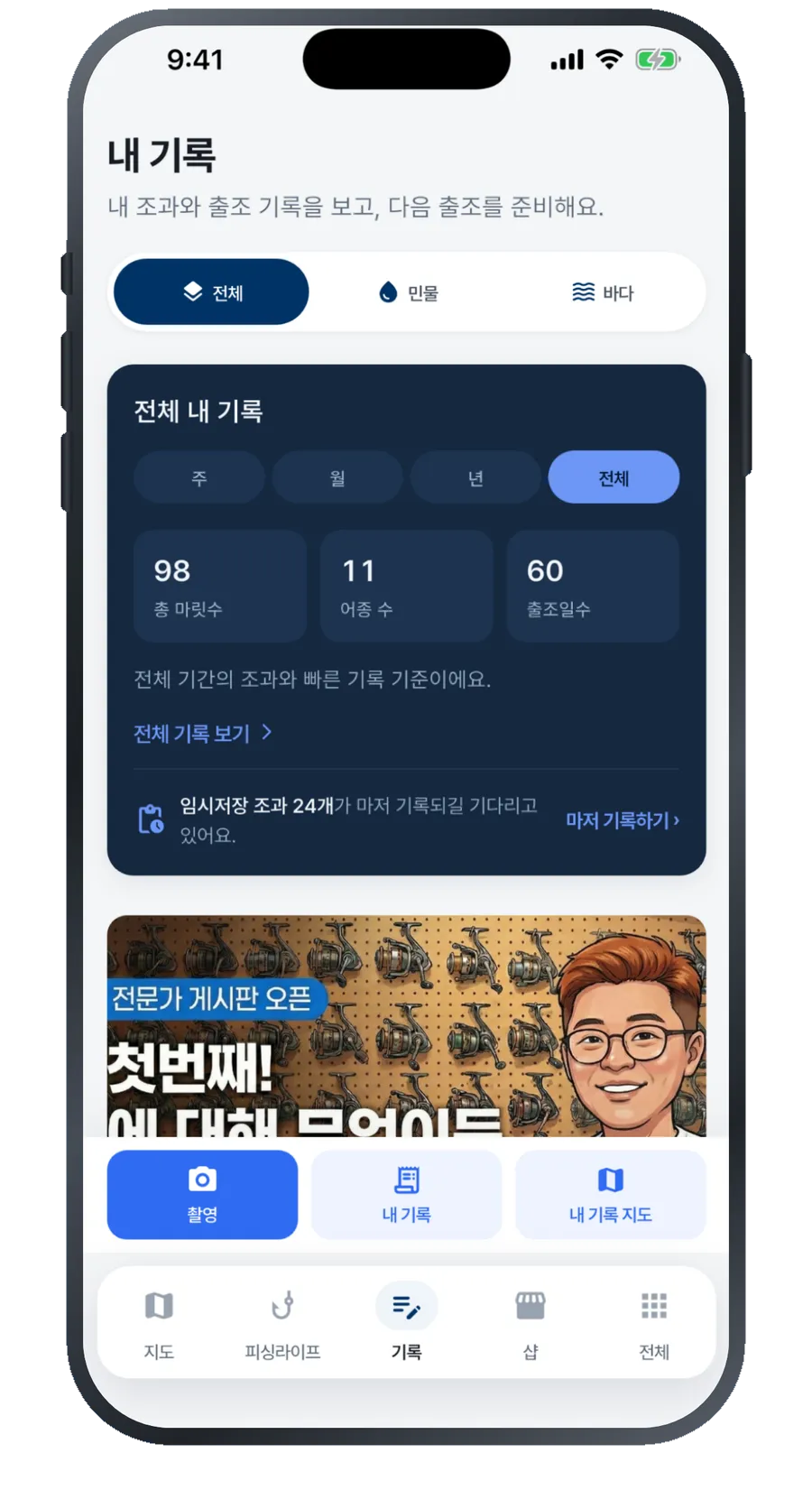
The Log (기록) tab keeps a running count of your fish, species and fishing days. Change the period to All (전체) to see your whole history at once.
If you have photos in your temporary album, you can finish logging them from this screen with Finish logging (마저 기록하기).
-
Your spots stay on the map
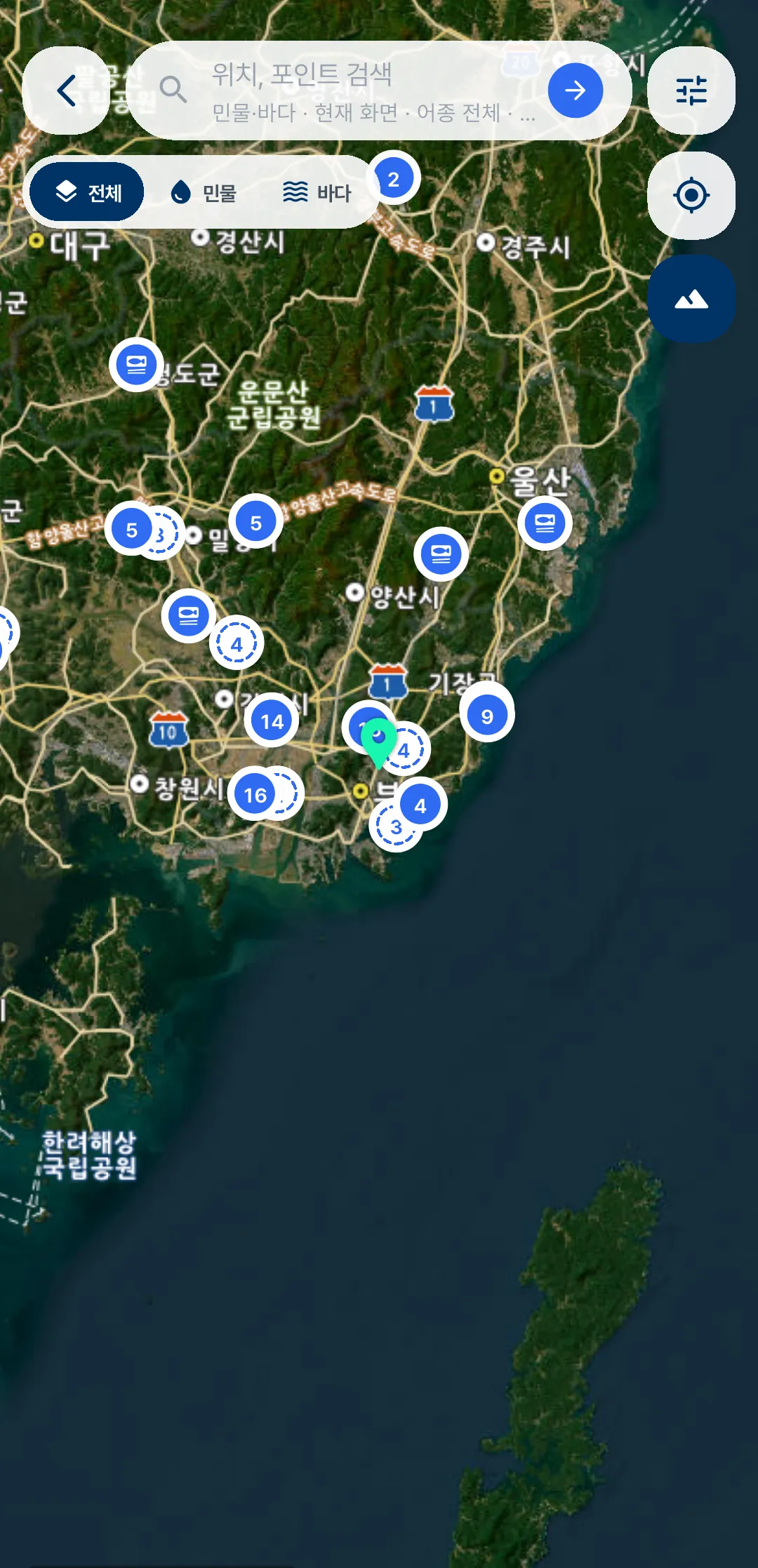
Tap My catch map (내 기록 지도) in the Log tab to see every spot where you’ve caught fish on one map. Tap a number to see everything you caught there, with species, length and date.
You can even look back at where you fished and what you caught on this day a year ago.
Use your points to buy gear
This is where you spend the points you’ve earned in Challenges and the prize money you’ve won in Tournaments.
-
Check your points and prize money
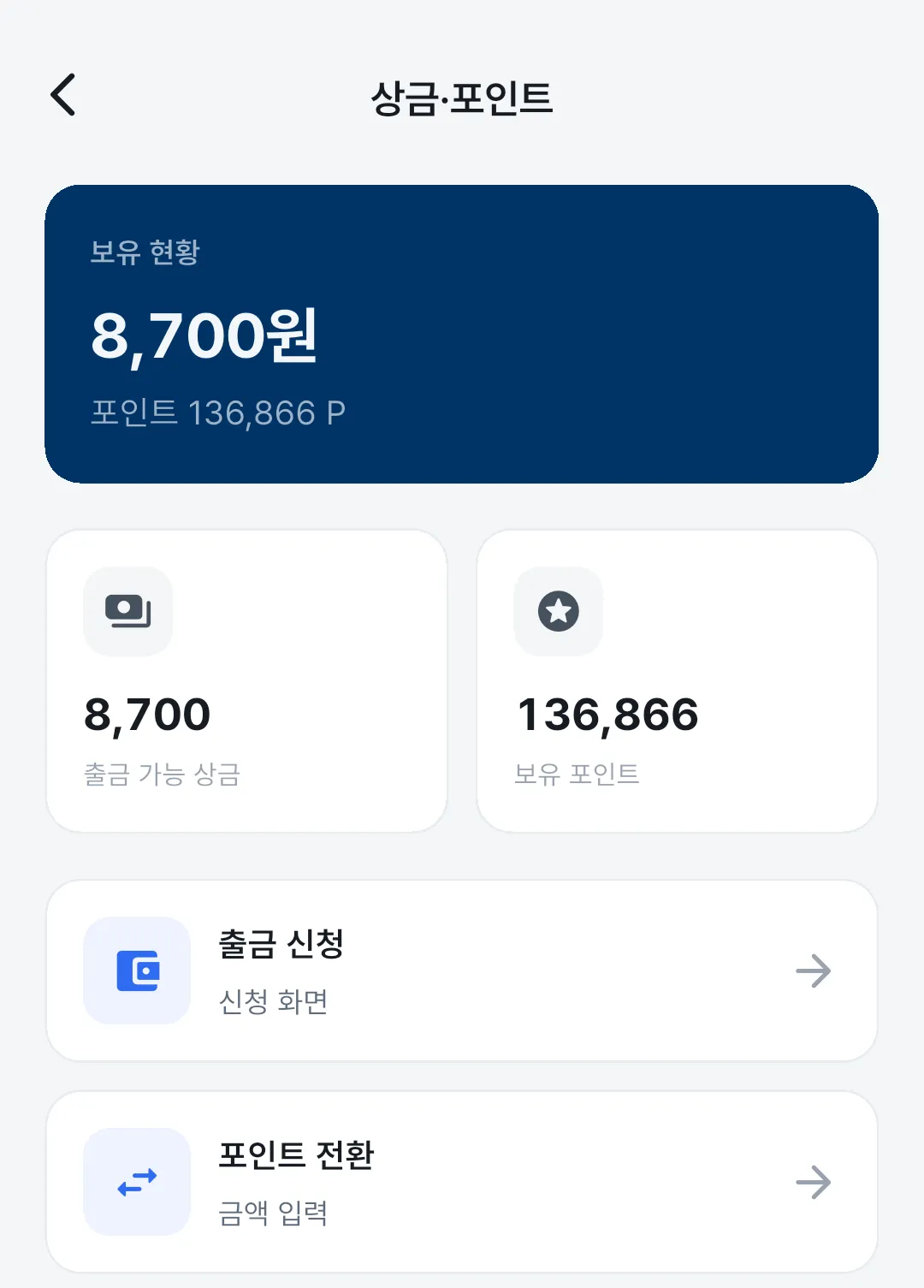
Under More (전체) → Points (포인트), you’ll find two balances side by side: your Points balance (보유 포인트) from Challenges, and your Withdrawable prize money (출금 가능 상금) from Tournaments.
You can receive prize money with Request withdrawal (출금 신청), or use Convert to points (포인트 전환) to turn it into points to spend in the Shop. Conversions can’t be undone, so please double-check the amount first.
-
Browse gear
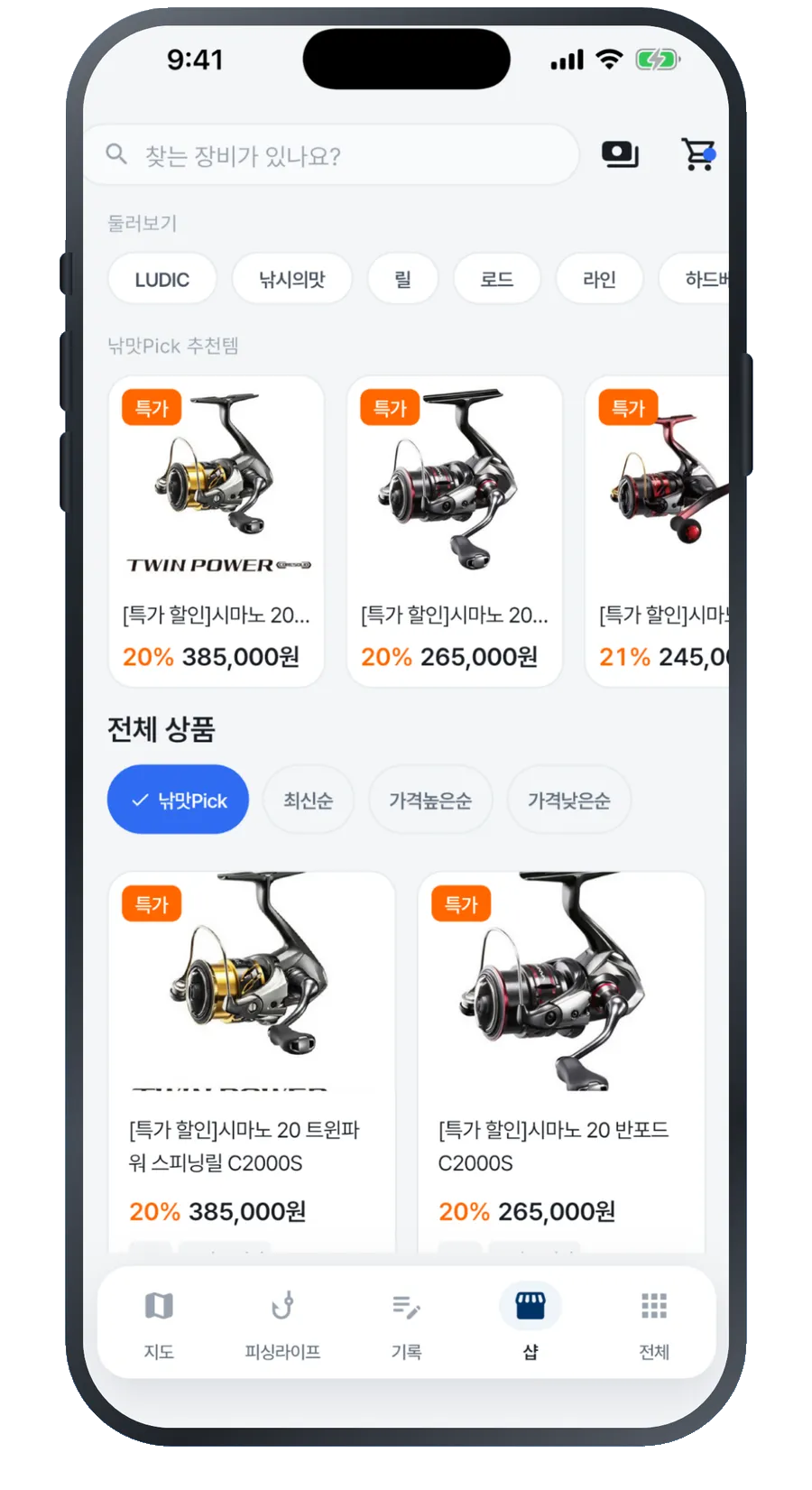
Check out NAKMAT Pick deals in the Shop (샵) tab, and use your points when you pay.
Everything else is here
Anything that isn’t in the first four tabs lives in the More (전체) tab.
Live catch reports
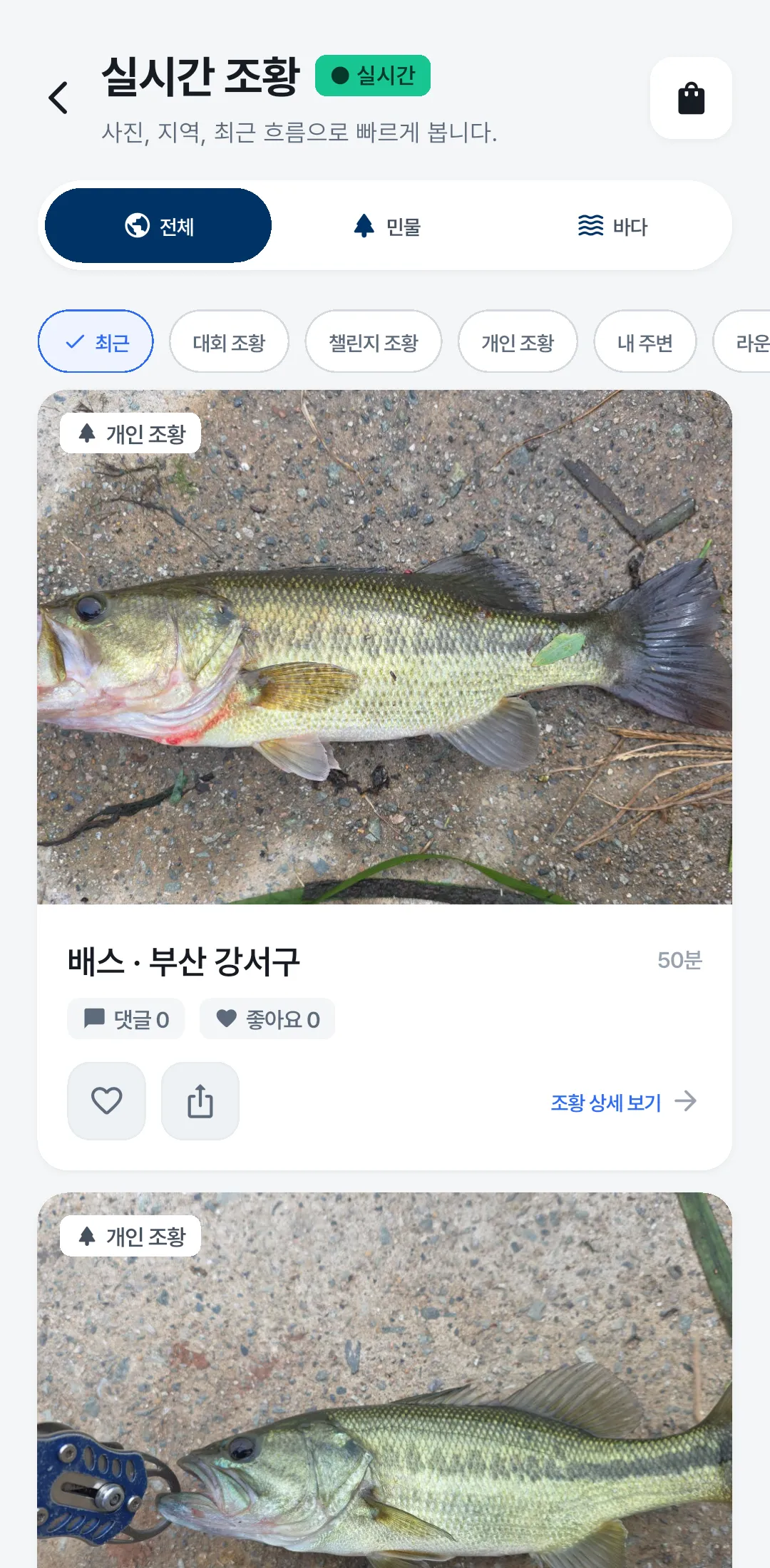
Use this when you’d rather see a list than a map. New catches are listed with the most recent first.
-
Where to find it
Go to More (전체) → Live catch reports (실시간 조황).
-
Filter by type
Tap the chips to filter by Tournament (대회 조황) · Challenge (챌린지 조황) · Personal (개인 조황) reports. Handy when you only want to see catches from Tournaments.
You can also use Near me (내 주변) to see only nearby spots, or Freshwater · Saltwater (민물 · 바다) at the top to filter by water type.
-
Or check the label on the photo
Each catch photo shows its type in the top-left corner, so you can tell what kind of report it is without using the chips.
There’s more
You may not use these often, but they’re easy to miss if you don’t know they’re there.
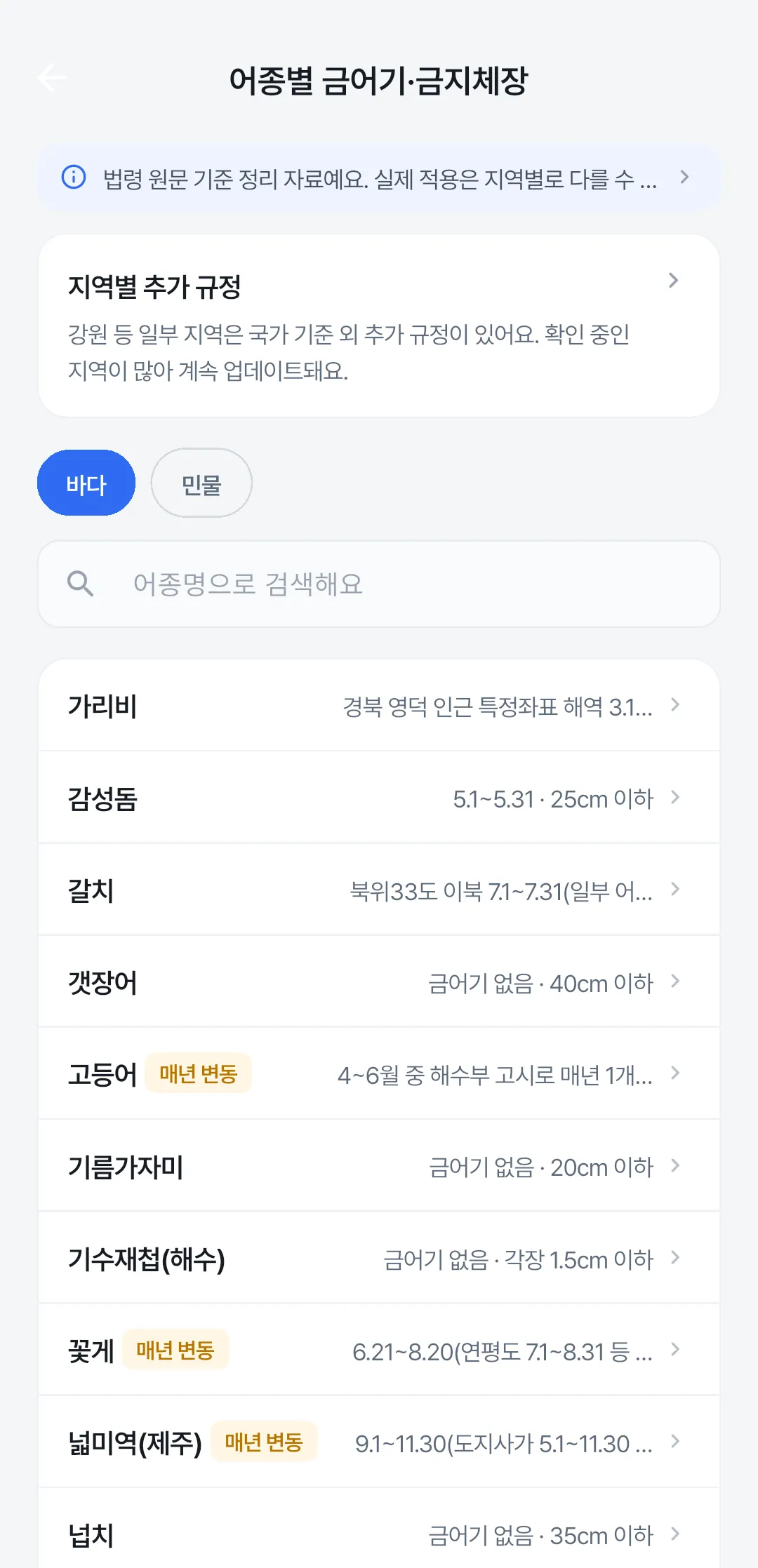
- Closed seasons & size limits by species More (전체) → Closed seasons & size limits (어종별 금어기·금지체장)
Check whether a species can be caught right now, and the minimum size (in cm) you’re allowed to keep.
- Notification inbox More (전체) → Notification inbox (알림함)
See your past notifications again. If you missed a condition alert, look here first.
- Lounge More (전체) → Lounge (라운지)
A place to talk about fishing beyond catch reports.
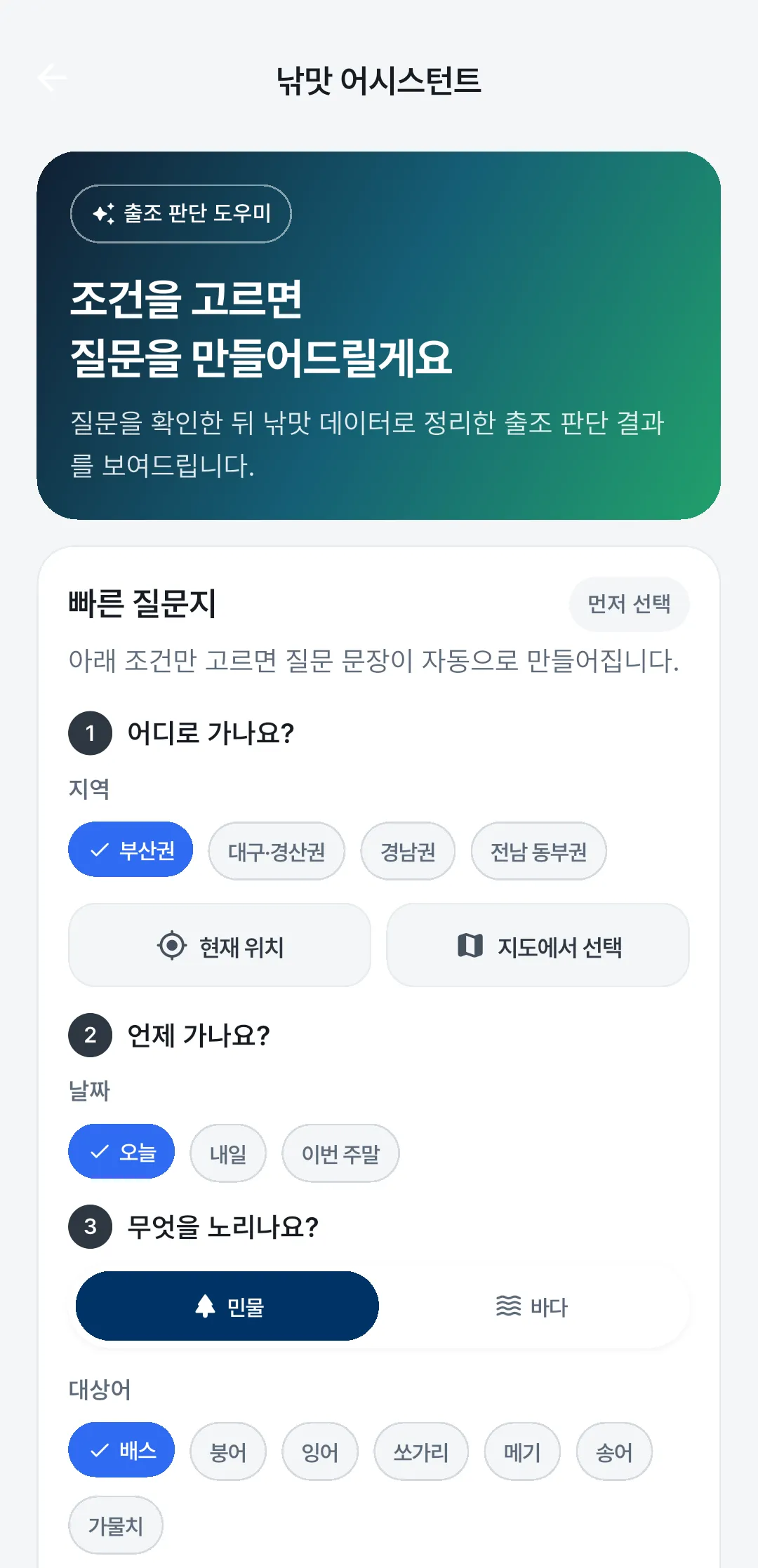
- Assistant More (전체) → Assistant (어시스턴트)
Ask about spots, rigs or what time to go, and get answers based on current conditions.
- Report a problem More (전체) → Report a problem (오류 제보)
Let us know about incorrect information or app errors, with photos or videos.
- Data sources More (전체) → Data sources (데이터 출처)
A full list of where our weather, tide, water-level and no-fishing-zone data comes from.
Questions we hear a lot
I’m not getting notifications
How many spots can I save?
You can Watch 1 spot for free. To have us watch more, there’s Planner Plus (3 spots) · Pro (20 spots) · Max (unlimited). You can see your current plan and pricing under More (전체) → Planner Pass (플래너 패스).
How do I cancel my subscription?
I switched to a new phone
Can I rely on the no-fishing zones in the app?
I posted the wrong catch photo
However, catches that have counted toward a Challenge or Tournament can’t be deleted, because they’re already being used to calculate rankings. You won’t see a delete option for them at all, so if one needs fixing, let us know via More (전체) → Customer Service (고객센터).
Didn’t find your answer here? Let us know in the app via More (전체) → Customer Service (고객센터).
Don’t have the app yet?
Available on both iOS and Android.